How to Handle a Phone with a Dead Battery: Step-by-Step Diagnosis for Repair Shops
8/6/2026· 4 min read

A phone that won't turn on is often just a dead battery, but it can also signal a deeper issue. For repair shops, correctly diagnosing a dead battery is the first step to a quick fix and a happy customer. This guide walks through the diagnostic process, from initial checks to battery replacement, so you can confidently handle these common cases.
Initial Customer Interview
Before opening the device, ask the customer a few key questions to narrow down the cause:
- When did the phone last work normally?
- Did the phone show a low-battery warning before shutting off?
- Has the phone been exposed to extreme temperatures or moisture?
- Have they tried charging it, and with what charger?
- Is the phone still under warranty?
These answers help you decide whether the issue is likely a drained battery, a faulty charging port, or a more serious internal problem.
Visual Inspection and Basic Checks
Start with a thorough visual inspection:
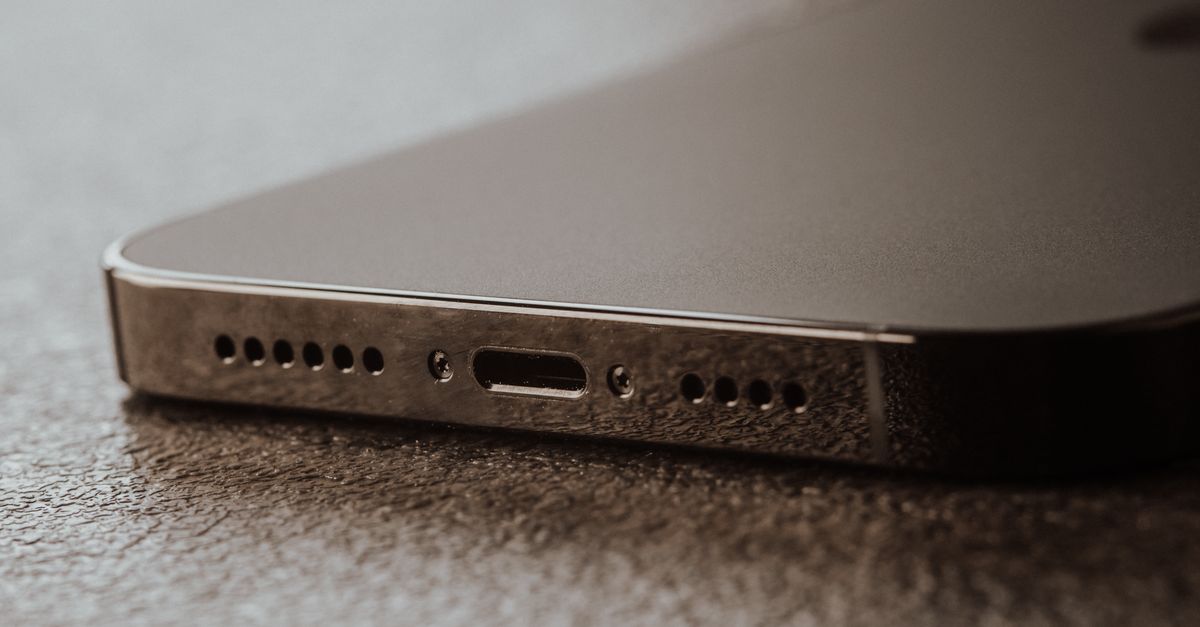
- Check the charging port for debris, lint, or corrosion.
- Inspect the charging cable and adapter for damage.
- Look for any signs of swelling on the back or screen, which could indicate a damaged battery.
- If possible, test with a known-good charger and cable.
Testing the Battery
If the phone still won't charge, you'll need to test the battery itself:
- Use a multimeter to check voltage at the battery connector. A healthy lithium-ion battery typically reads around 3.7V.
- If the voltage is below 3.0V, the battery may be deeply discharged and might not accept a charge.
- For batteries that are removable, try a known-good battery to see if the phone powers on.
Charging Issues vs. Dead Battery
Sometimes the problem isn't the battery but the charging circuit. To distinguish:
- Connect the phone to a power source and check if the charging icon appears. If it does, the battery is likely fine but may need time to charge.
- If no icon appears, the issue could be a faulty charging port, a damaged charging IC, or a software glitch.
- Try a forced restart (e.g., holding power + home for iPhones, or power + volume down for many Android phones) to rule out a software freeze.
Battery Replacement Best Practices
If you determine the battery is dead and needs replacement, follow these steps:
- Use a high-quality replacement battery from a reputable supplier.
- Power down the device and disconnect the battery before any other repairs.
- Follow the manufacturer's guidelines for safe removal and installation.
- After replacement, charge the phone to 100% and run a diagnostic test to ensure everything is working.
Preventive Advice for Customers
To help customers avoid future dead-battery issues, share these tips:
- Avoid letting the battery drain to 0% regularly.
- Use the original charger or a certified third-party one.
- Keep the phone away from extreme heat.
- Consider battery replacement every 2-3 years, depending on usage.
When to Refer Out
If the phone still doesn't power on after a new battery, the issue may be with the motherboard or other internal components. In that case, you might need to refer the customer to a specialist or offer advanced diagnostics if your shop has the capability.
Streamlining with RagoxCell
RagoxCell helps repair shops manage every step of the repair process, from intake to diagnostics to final testing. With features like automated diagnostics and repair tracking, you can reduce turnaround time and improve customer satisfaction. Learn more about how RagoxCell can streamline your shop's workflow.
Photo: Harry Tucker / Pexels
Get repair-shop growth tips in your inbox
Practical guides on pricing, workflow and getting paid. No spam — unsubscribe anytime.