How to Handle a Phone That Won't Connect to Cellular Data: Step-by-Step Diagnosis for Repair Shops
8/18/2026· 4 min read

When a phone won't connect to cellular data, it's often a tricky issue that can stem from software glitches, network settings, or hardware failures. For repair shops, a systematic approach is essential to diagnose and fix the problem efficiently. This guide walks you through a step-by-step process to handle such cases, ensuring you cover all bases and get the customer back online quickly.
Process overview
Initial Checks and Customer Interview
Start by asking the customer a few key questions to narrow down the issue:
- When did the problem start? Was it after a software update, a drop, or exposure to water?
- Is the issue consistent or intermittent?
- Does it happen in specific locations or everywhere?
- Have they tried any fixes already, like toggling Airplane Mode or resetting network settings?
These answers can point you toward the most likely cause. For example, a sudden onset after a drop suggests hardware damage, while a gradual issue might be software-related.
Software and Settings Verification
Before opening the device, check the obvious software settings:
- Ensure Cellular Data is enabled in Settings > Cellular (or Mobile Data).
- Check if the phone is in Airplane Mode or has a data limit set.
- Verify that the correct APN settings are configured, especially if the phone was recently unlocked or the carrier was changed.
- Look for any pending carrier settings updates or iOS/Android updates that might fix known bugs.
If settings seem correct, try a network settings reset (Settings > General > Reset > Reset Network Settings on iOS, or similar on Android). This often resolves configuration glitches without affecting personal data.
SIM Card and Carrier Issues
The SIM card is a common culprit. Remove the SIM and inspect it for damage or dirt. Try the SIM in another phone to see if it works. If it doesn't, the issue is with the SIM or the carrier account. If it does, the problem lies in the phone.
Also, check if the phone is carrier-locked. A locked phone may not work with a different carrier's SIM. Use the device's IMEI to check lock status if needed.
Hardware Diagnostics
If software and SIM checks pass, move to hardware. Use a diagnostic tool to test the cellular antenna, baseband, and related components. Look for signs of liquid damage or physical damage near the antenna connections. In some cases, a loose antenna flex cable can cause intermittent signal loss.
For iPhones, a common issue is a faulty baseband chip, especially in older models. For Android phones, check the RF connectors and antenna contacts.
Advanced Troubleshooting
If you have access to a signal generator or spectrum analyzer, you can test the phone's RF output. However, most repair shops rely on simpler methods like checking the signal strength in different modes (e.g., 2G, 3G, 4G, 5G) using field test mode codes.
If the phone works on some bands but not others, it could be a band-specific hardware issue. This might require micro-soldering repairs, which you can offer if you have the skills, or refer to a specialist.
Common Fixes and Repairs
Based on your diagnosis, the fix could range from simple to complex:
- Software fix: Reset network settings, update iOS/Android, or reflash firmware.
- SIM replacement: If the SIM is damaged, replace it.
- Antenna repair: Reconnect or replace antenna flex cables.
- Baseband repair: Reflow or replace the baseband chip (advanced).
Always quote the customer before proceeding with costly repairs, and explain the likelihood of success.
Testing and Quality Assurance
After the repair, test the phone thoroughly:
- Check signal strength in various locations.
- Make a test call and use data to ensure both voice and data work.
- Test on different network types (4G, 5G) if available.
- Run a full diagnostic to ensure no other issues were introduced.
Document the repair in your management system, noting the issue, steps taken, and parts replaced. This helps with future troubleshooting and warranty claims.
Conclusion
Cellular data issues can be frustrating for customers, but with a systematic approach, you can diagnose and fix most problems. By combining software checks, SIM inspection, and hardware diagnostics, you'll build a reputation for solving even the toughest connectivity issues. Remember, a clear communication with the customer throughout the process is key to a positive experience.
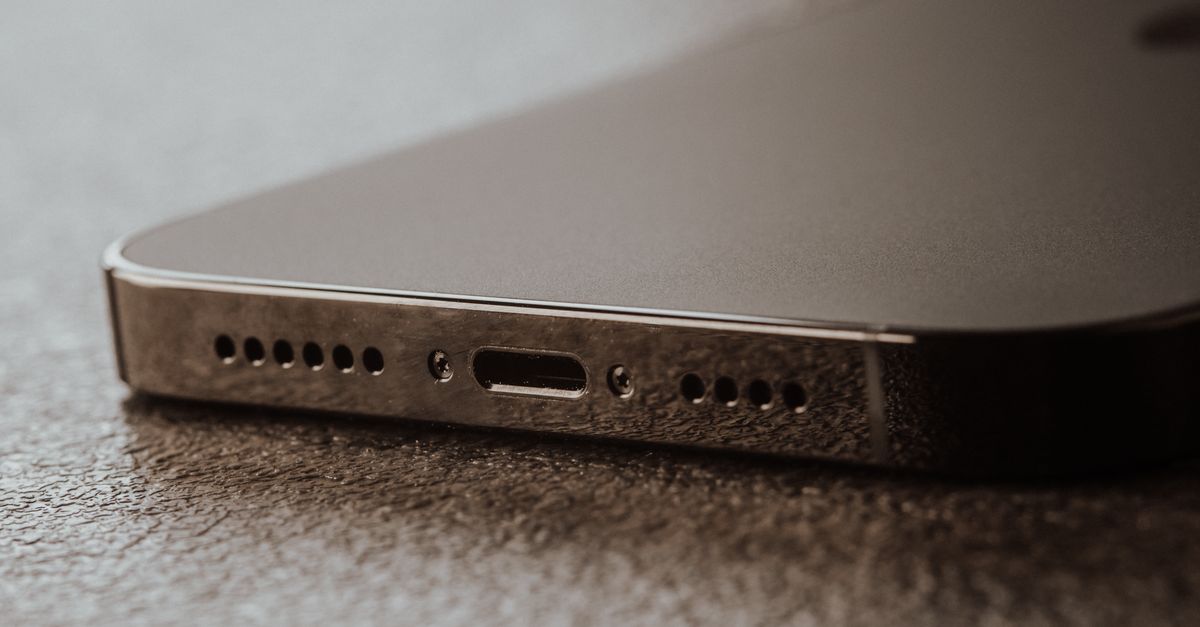
Photo: Tima Miroshnichenko / Pexels
Get repair-shop growth tips in your inbox
Practical guides on pricing, workflow and getting paid. No spam — unsubscribe anytime.