How to Diagnose a Phone with No Sound: Step-by-Step Guide for Repair Shops
6/30/2026· 3 min read

When a customer brings in a phone with no sound, it can be a frustrating issue to diagnose. Whether it's a failed speaker, a software glitch, or a damaged audio IC, having a clear diagnostic process saves time and builds trust. This guide walks you through the common causes and a step-by-step method to identify the problem quickly.
Common Causes of No Sound on a Phone
- Muted or low volume: The simplest cause—check if the phone is muted or volume is turned down.
- Software glitch: A temporary bug after an update or app conflict.
- Blocked speaker grille: Dust or debris can muffle sound.
- Water damage: Corrosion on speaker contacts or audio IC.
- Faulty speaker: Physical damage or wear.
- Audio IC failure: Common on certain models after drops.
- Headphone jack stuck: Phone thinks headphones are plugged in.
Step-by-Step Diagnostic Process
1. Check Basic Settings
- Ensure the phone isn't in silent or Do Not Disturb mode.
- Test with multiple apps (music, calls, videos) to isolate the issue.
- Restart the phone to rule out temporary software glitches.
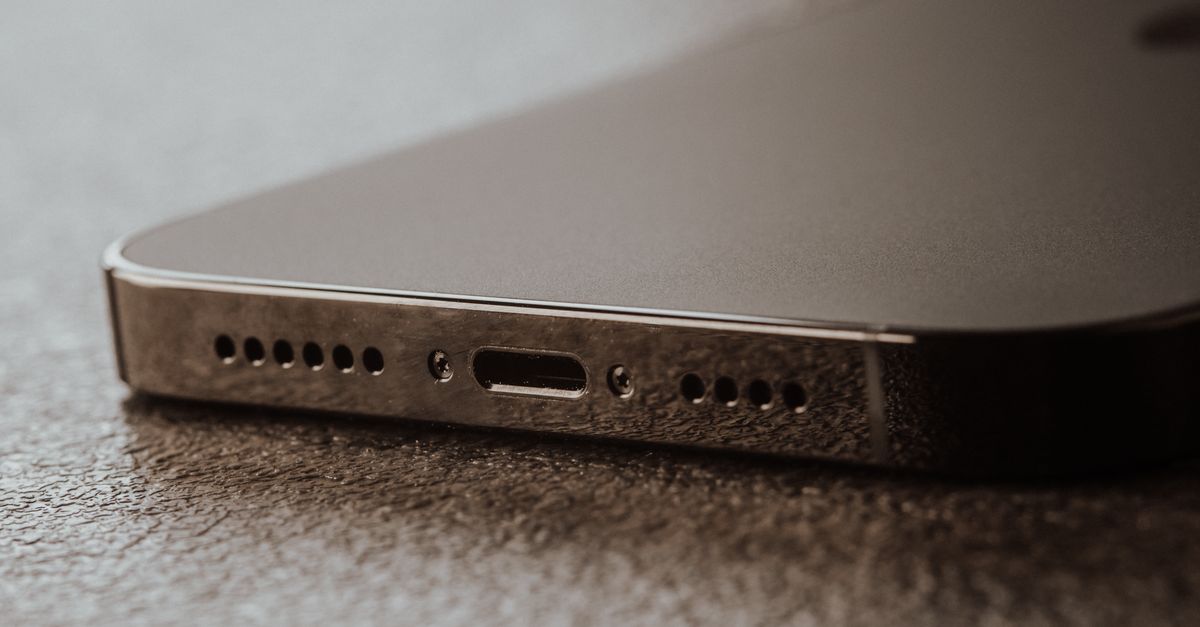
2. Inspect the Speaker Grilles
- Use a bright light and magnifier to check for debris.
- Clean gently with a soft brush or compressed air.
3. Test with Headphones or Bluetooth
- Plug in headphones: if sound works, the issue is likely the speaker or audio path.
- Connect to a Bluetooth speaker: if sound works, the internal speaker may be faulty.
4. Check for Water Damage
- Look for liquid contact indicators (LCIs) that have turned red.
- Examine the speaker mesh for corrosion.
5. Run a Software Diagnostic
- Use the phone's built-in diagnostic tool (e.g., Samsung Members, Apple's built-in test) if available.
- For iPhones, you can use the "Audio" test in the field test mode (dial 3001#12345#).
6. Inspect the Audio IC (for common models)
- On certain iPhones (iPhone 7, 8, X), the audio IC can fail after a drop.
- Symptoms: sound works intermittently, no sound from speaker, but headphones work.
- Requires microsoldering repair or board-level work.
7. Test the Speaker Component
- Disassemble the phone carefully.
- Use a multimeter to check speaker continuity (typically 4-8 ohms).
- If open, replace the speaker.
Tools You'll Need
- Precision screwdriver set
- Plastic spudger
- Magnifying lamp or microscope
- Multimeter
- Compressed air
- Soft brush
When to Refer to a Specialist
If you lack microsoldering skills or the phone has board-level damage, consider referring to a specialist or investing in training. RagoxCell's 150+ tests can help you document and track diagnostics efficiently.
Conclusion
A systematic approach to diagnosing no-sound issues helps you fix phones faster and reduces returns. By following these steps, you can confidently identify the root cause and provide accurate quotes to your customers.
Photo: Tima Miroshnichenko / Pexels
Get repair-shop growth tips in your inbox
Practical guides on pricing, workflow and getting paid. No spam — unsubscribe anytime.